


 In Atlantis, there are different ways to scroll documents with the mouse wheel. Click for details...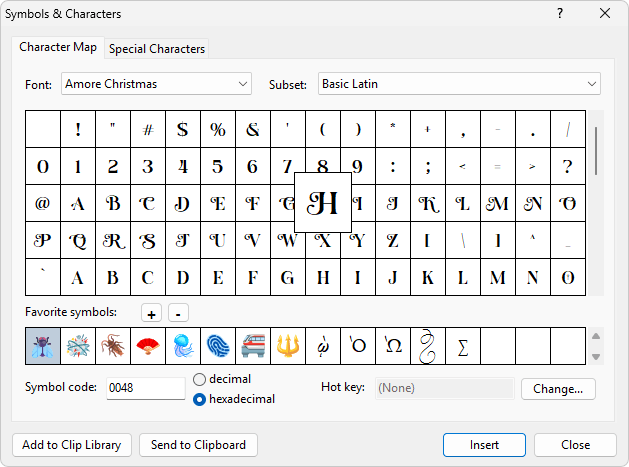
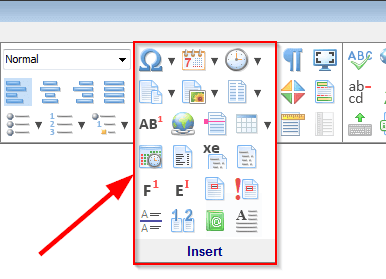
You can access this dialog by choosing the "Insert | Symbol..." menu command or by clicking the Insert symbol  button of the Insert toolbar
 .
.
This dialog allows you to insert various symbols and characters into your document.
At the top of the dialog, you can switch between the two tabs - "Character Map" and "Special Characters":

On the Character Map tab, you can choose a character from any font available in your system. First, select a font from the corresponding box:

Then choose a character from the scrollable character map. It shows all the characters available in the currently selected font:
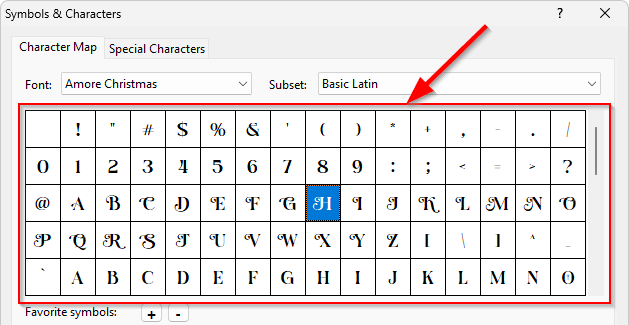
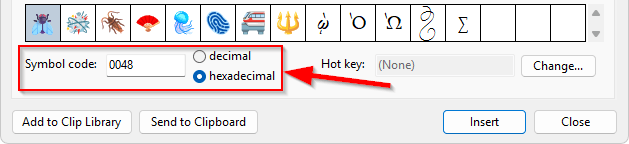
You can choose a character with the mouse or the cursor keys. You can also specify the required character code at the bottom of the dialog:
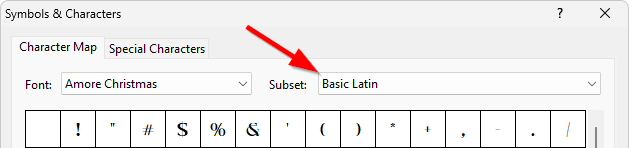
To quickly navigate to a specific group of characters, you can use the "Subset" box at the top of the dialog:
After you have selected the character you need, click the "Insert" button at the bottom of the dialog to insert the character to the current document or press the Enter key. Or just double-click the character in the character map.
Most probably you will use a limited number of symbols more frequently than others. These can be added to a list of your "Favorite symbols". To add a symbol to the "Favorite symbols" list, first click the symbol in the character map, then click the "Add to Favorite symbols" button. The highlighted symbol will be added to the gallery displayed under the main character map:
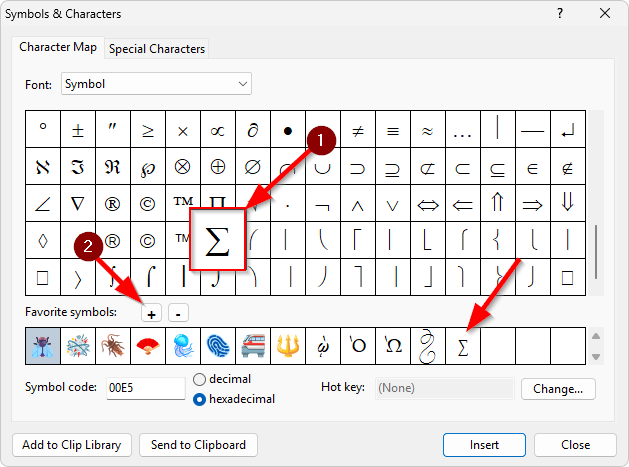
To insert a Favorite symbol in a document, just double-click it, or click once then click the "Insert" button or press the Enter key.
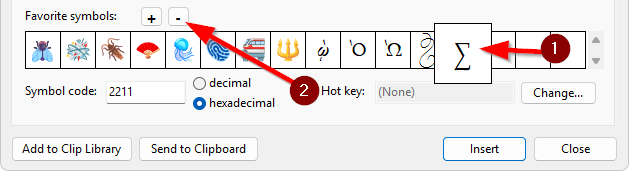
To delete a symbol from the Favorite symbols, click the symbol, then click the "Delete Favorite symbol" button above the list of Favorite symbols:
After selecting a character either from the main character map or from the "Favorite symbols" list, you can add the character to the Clip Library or copy to the clipboard. You can also assign a keyboard shortcut (a hot key) to the character:
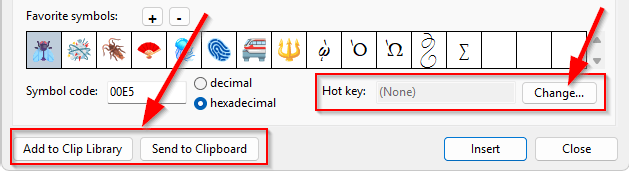
If you assign a hot key to a character, you can press this hot key in a document to insert the character.
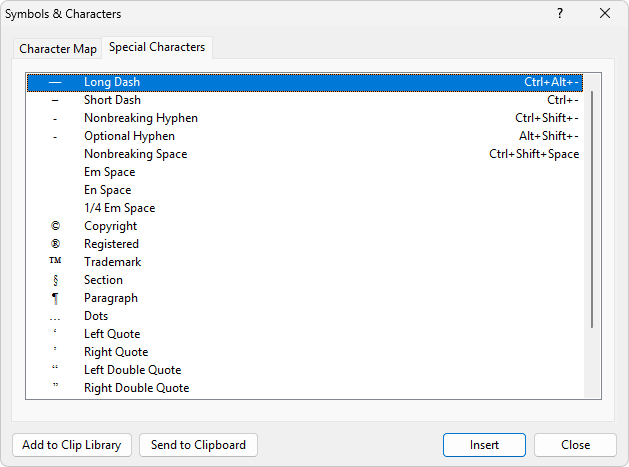
The second tab of the dialog - Special Characters - offers a selection of common punctuation marks and other special characters:
See also...


