


 You can enlarge or reduce the left indent of a selection of paragraphs by pressing Ctrl+M or Ctrl+Shift+M respectively.
The Find/Replace panel displays with a click on the corresponding button  at the top of the Control Board.
This panel can be used to search the active document or all open documents for text or formatting, review the results, and optionally replace them with new text or format them:

To specify which documents to search, click the corresponding drop-down box at the top of the panel. You can search the active document, multiple documents selected on the Document Bar, or all open documents:

Clicking the button at the top right-hand corner of the panel displays a menu with the search options:

For the description of the Whole Words, Exact Match, and Use Wildcards options, please click here.
When the Scroll First Match Into View option is checked, and you specify a new text to search for, the first matching item gets automatically brought into view in the document window. In other words, the document window gets automatically scrolled to make the first match visible.
The saved searches allow you to store a collection of search patterns so that you can perform the same searches later without re-entering them. With the batch find & replace tool of Atlantis, you can automate the search operations even further.
When the Use Instead of "Find/Replace" Dialog option is checked, Atlantis, when possible, offers the "Find/Replace" panel for various search operations instead of the traditional "Find/Replace" dialog. For example, when this option is checked, pressing CtrlF will open the "Find/Replace" panel, not the "Find/Replace" dialog. If you uncheck this option, the "Find/Replace" dialog will be your main tool for search operations. If you keep the "Find/Replace" panel as the main search tool, you can still open the "Find/Replace" dialog by clicking the Open "Find/Replace" Dialog item of the menu.
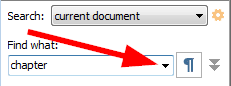
As soon as you specify text in the Find what box of the panel, it starts searching the target document(s) for the specified text. Found items, if any, get reported through the Results box:

Found instances also get highlighted in the document window:

You can select individual instances of found text in the document window by clicking them in the Results box. To select all the found items in the document window, click Select All at the bottom of the panel.
When the Mouse Hover Previews option is checked in the settings menu of the Control Board:

hovering the mouse over the results in the panel temporarily highlights them in the document window:

To access additional search-related features of the panel, click the More button:

You could then search for formatting, replace found text, or change its formatting:

To insert various special symbols to the Find what or Replace with boxes, use the corresponding Add special symbol buttons:

To replace individual found items, click the corresponding Replace buttons within the Results box:

To replace all found items, use the Replace All button at the bottom of the panel.
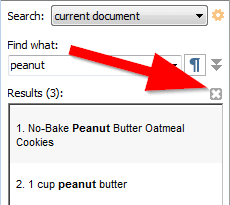
Clicking the "Cancel search" button at the top of the box with the search results stops the search that is currently in progress (if any) and clears the "Find what" and "Replace with" text, formatting, and results:
Tips:
See also...


